Writing your docs
How to write and layout your markdown source files.
Configure Pages and Navigation
The pages configuration in your
mkdocs.yml defines which pages are built by MkDocs and how they appear in the
documentation navigation. If not provided, the pages configuration will be
automatically created by discovering all the Markdown files in the
documentation directory. An
automatically created pages configuration will always be sorted
alphanumerically by file name. You will need to manually define your pages
configuration if you would like your pages sorted differently.
A simple pages configuration looks like this:
pages:
- 'index.md'
- 'about.md'
With this example we will build two pages at the top level and they will
automatically have their titles inferred from the filename. Assuming docs_dir
has the default value, docs, the source files for this documentation would be
docs/index.md and docs/about.md. To provide a custom name for these pages,
they can be added before the filename.
pages:
- Home: 'index.md'
- About: 'about.md'
Multilevel documentation
Subsections can be created by listing related pages together under a section title. For example:
pages:
- Home: 'index.md'
- User Guide:
    - 'Writing your docs': 'user-guide/writing-your-docs.md'
    - 'Styling your docs': 'user-guide/styling-your-docs.md'
- About:
    - 'License': 'about/license.md'
    - 'Release Notes': 'about/release-notes.md'
With the above configuration we have three top level sections: Home, User Guide and About. Then under User Guide we have two pages, Writing your docs and Styling your docs. Under the About section we also have two pages, License and Release Notes.
File layout
Your documentation source should be written as regular Markdown files, and
placed in a directory somewhere in your project. Normally this directory will be
named docs and will exist at the top level of your project, alongside the
mkdocs.yml configuration file.
The simplest project you can create will look something like this:
mkdocs.yml
docs/
    index.md
By convention your project homepage should always be named index. Any of the
following extensions may be used for your Markdown source files: markdown,
mdown, mkdn, mkd, md.
You can also create multi-page documentation, by creating several markdown files:
mkdocs.yml
docs/
    index.md
    about.md
    license.md
The file layout you use determines the URLs that are used for the generated pages. Given the above layout, pages would be generated for the following URLs:
/
/about/
/license/
You can also include your Markdown files in nested directories if that better suits your documentation layout.
docs/
    index.md
    user-guide/getting-started.md
    user-guide/configuration-options.md
    license.md
Source files inside nested directories will cause pages to be generated with nested URLs, like so:
/
/user-guide/getting-started/
/user-guide/configuration-options/
/license/
Linking documents
MkDocs allows you to interlink your documentation by using regular Markdown hyperlinks.
Internal hyperlinks
When linking between pages in the documentation you can simply use the regular Markdown hyperlinking syntax, including the relative path to the Markdown document you wish to link to.
Please see the [project license](license.md) for further details.
When the MkDocs build runs, these hyperlinks will automatically be transformed into a hyperlink to the appropriate HTML page.
When working on your documentation you should be able to open the linked Markdown document in a new editor window simply by clicking on the link.
If the target documentation file is in another directory you'll need to make sure to include any relative directory path in the hyperlink.
Please see the [project license](../about/license.md) for further details.
You can also link to a section within a target documentation page by using an anchor link. The generated HTML will correctly transform the path portion of the hyperlink, and leave the anchor portion intact.
Please see the [project license](about.md#license) for further details.
Images and media
As well as the Markdown source files, you can also include other file types in your documentation, which will be copied across when generating your documentation site. These might include images and other media.
For example, if your project documentation needed to include a GitHub pages CNAME file and a PNG formatted screenshot image then your file layout might look as follows:
mkdocs.yml
docs/
    CNAME
    index.md
    about.md
    license.md
    img/
        screenshot.png
To include images in your documentation source files, simply use any of the regular Markdown image syntaxes:
Cupcake indexer is a snazzy new project for indexing small cakes.

*Above: Cupcake indexer in progress*
You image will now be embedded when you build the documentation, and should also be previewed if you're working on the documentation with a Markdown editor.
Markdown extensions
MkDocs supports the following Markdown extensions.
Tables
A simple table looks like this:
First Header | Second Header | Third Header
------------ | ------------- | ------------
Content Cell | Content Cell  | Content Cell
Content Cell | Content Cell  | Content Cell
If you wish, you can add a leading and tailing pipe to each line of the table:
| First Header | Second Header | Third Header |
| ------------ | ------------- | ------------ |
| Content Cell | Content Cell  | Content Cell |
| Content Cell | Content Cell  | Content Cell |
Specify alignment for each column by adding colons to separator lines:
First Header | Second Header | Third Header
:----------- |:-------------:| -----------:
Left         | Center        | Right
Left         | Center        | Right
Fenced code blocks
The first line should contain 3 or more backtick (`) characters, and the
last line should contain the same number of backtick characters (`):
```
Fenced code blocks are like Standard
Markdown’s regular code blocks, except that
they’re not indented and instead rely on
start and end fence lines to delimit the
code block.
```
With this approach, the language can optionally be specified on the first line after the backticks:
```python
def fn():
    pass
```
Styling your docs
How to style and theme your documentation.
MkDocs includes a couple built-in themes as well as various third party themes, all of which can easily be customized with extra CSS or JavaScript or overridden from the [theme directory][theme_dir]. You can also create your own custom theme from the ground up for your documentation.
To use a theme that is included in MkDocs, simply add this to your
mkdocs.yml config file.
theme: readthedocs
Replace readthedocs with any of the built-in themes listed below.
To create a new custom theme see the Custom Themes page, or to more heavily customize an existing theme, see the Customizing a Theme section below.
Built-in themes
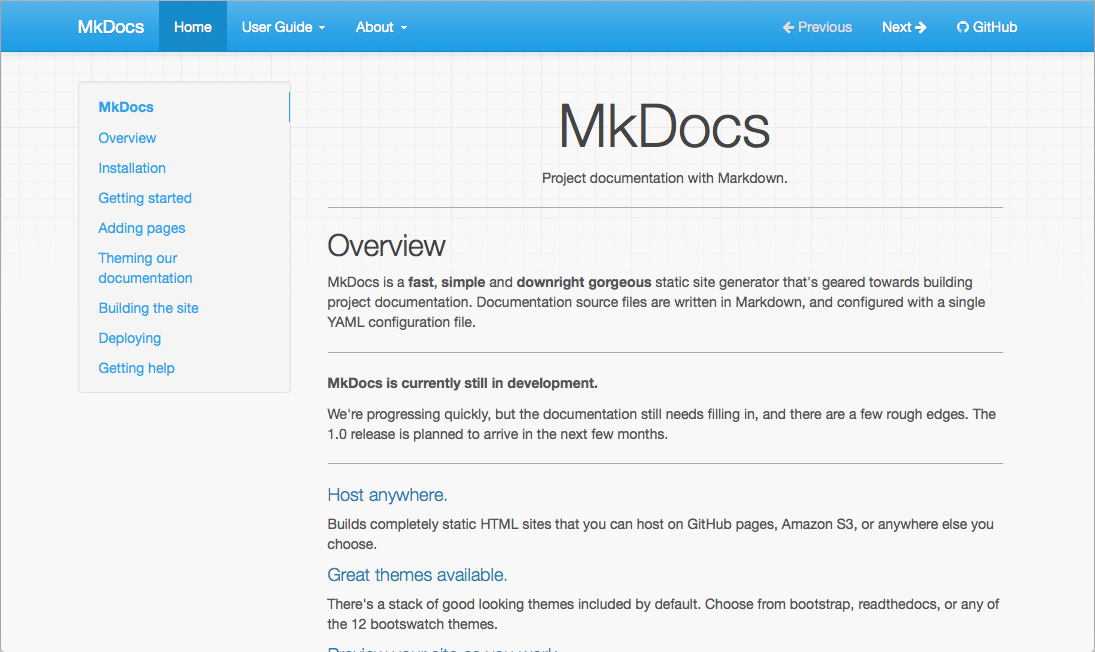
mkdocs
The default theme, which was built as a custom Bootstrap theme, supports most every feature of MkDocs. It only supports the default theme configuration options.
readthedocs
A clone of the default theme used by the Read the Docs service. This theme only supports features in its parent theme and does not support any MkDocs theme configuration options in addition to the defaults.

Third Party Themes
A list of third party themes can be found in the MkDocs community wiki. If you have created your own, please feel free to add it to the list.
Customizing a Theme
If you would like to make a few tweaks to an existing theme, there is no need to create your own theme from scratch. For minor tweaks which only require some CSS and/or JavaScript, you can use the docs_dir. However, for more complex customizations, including overriding templates, you will need to use the theme custom_dir setting.
Using the docs_dir
The extra_css and extra_javascript configuration options can be used to make tweaks and customizations to existing themes. To use these, you simply need to include either CSS or JavaScript files within your documentation directory.
For example, to change the colour of the headers in your documentation, create
a file called extra.css and place it next to the documentation Markdown. In
that file add the following CSS.
h1 {
  color: red;
}
!!! note
If you are deploying your documentation with [ReadTheDocs]. You will need
to explicitly list the CSS and JavaScript files you want to include in
your config. To do this, add the following to your mkdocs.yml.

    extra_css: [extra.css]
After making these changes, they should be visible when you run
mkdocs serve - if you already had this running, you should see that the CSS
changes were automatically picked up and the documentation will be updated.
!!! note
Any extra CSS or JavaScript files will be added to the generated HTML
document after the page content. If you desire to include a JavaScript
library, you may have better success including the library by using the
theme [custom_dir].
Using the theme custom_dir
The theme.custom_dir configuration option can be used to point to a directory
of files which override the files in a parent theme. The parent theme would be
the theme defined in the theme.name configuration option. Any file in the
custom_dir with the same name as a file in the parent theme will replace the
file of the same name in the parent theme. Any additional files in the
custom_dir will be added to the parent theme. The contents of the custom_dir
should mirror the directory structure of the parent theme. You may include
templates, JavaScript files, CSS files, images, fonts, or any other media
included in a theme.
!!! Note
For this to work, the theme `name` setting must be set to a known installed theme.
If the `name` setting is instead set to `null` (or not defined), then there
is no theme to override and the contents of the `custom_dir` must be a
complete, standalone theme. See [Custom Themes][custom theme] for more
information.
For example, the mkdocs theme (browse source), contains the following directory structure (in part):
- css\
- fonts\
- img\
  - favicon.ico
  - grid.png
- js\
- 404.html
- base.html
- content.html
- nav-sub.html
- nav.html
- toc.html
To override any of the files contained in that theme, create a new directory
next to your docs_dir:
mkdir custom_theme
And then point your mkdocs.yml configuration file at the new directory:
theme:
    name: mkdocs
    custom_dir: custom_theme
To override the 404 error page ("file not found"), add a new template file named
404.html to the custom_theme directory. For information on what can be
included in a template, review the documentation for building a custom theme.
To override the favicon, you can add a new icon file at
custom_theme/img/favicon.ico.
To include a JavaScript library, copy the library to the custom_theme/js/
directory.
Your directory structure should now look like this:
- docs/
  - index.html
- custom_theme/
  - img/
    - favicon.ico
  - js/
    - somelib.js
  - 404.html
- config.yml
!!! Note
Any files included in the parent theme (defined in `name`) but not included
in the `custom_dir` will still be utilized. The `custom_dir` will only
override/replace files in the parent theme. If you want to remove files, or
build a theme from scratch, then you should review the documentation for
building a [custom theme].
Overriding Template Blocks
The built-in themes implement many of their parts inside template blocks which
can be individually overridden in the main.html template. Simply create a
main.html template file in your custom_dir and define replacement blocks
within that file. Just make sure that the main.html extends base.html. For
example, to alter the title of the MkDocs theme, your replacement main.html
template would contain the following:
{% extends "base.html" %}

{% block title %}
<title>Custom title goes here</title>
{% endblock %}
In the above example, the title block defined in your custom main.html file
will be used in place of the default title block defined in the parent theme.
You may re-define as many blocks as you desire, as long as those blocks are
defined in the parent. For example, you could replace the Google Analytics
script with one for a different service or replace the search feature with your
own. You will need to consult the parent theme you are using to determine what
blocks are available to override. The MkDocs and ReadTheDocs themes provide the
following blocks:
site_meta: Contains meta tags in the document head.htmltitle: Contains the page title in the document head.styles: Contains the link tags for stylesheets.libs: Contains the JavaScript libraries (jQuery, etc) included in the page header.scripts: Contains JavaScript scripts which should execute after a page loads.analytics: Contains the analytics script.extrahead: An empty block in the<head>to insert custom tags/scripts/etc.site_name: Contains the site name in the navigation bar.site_nav: Contains the site navigation in the navigation bar.search_box: Contains the search box in the navigation bar.next_prev: Contains the next and previous buttons in the navigation bar.repo: Contains the repository link in the navigation bar.content: Contains the page content and table of contents for the page.footer: Contains the page footer.
You may need to view the source template files to ensure your modifications will work with the structure of the site. See Template Variables for a list of variables you can use within your custom blocks. For a more complete explanation of blocks, consult the Jinja documentation.
Combining the custom_dir and Template Blocks
Adding a JavaScript library to the custom_dir will make it available, but
won't include it in the pages generated by MkDocs. Therefore, a link needs to
be added to the library from the HTML.
Starting the with directory structure above (truncated):
- docs/
- custom_theme/
  - js/
    - somelib.js
- config.yml
A link to the custom_theme/js/somelib.js file needs to be added to the
template. As somelib.js is a JavaScript library, it would logically go in the
libs block. However, a new libs block that only includes the new script will
replace the block defined in the parent template and any links to libraries in
the parent template will be removed. To avoid breaking the template, a
super block can be used with a call to super from within the block:
{% extends "base.html" %}

{% block libs %}
    {{ super() }}
    <script src="{{ base_url }}/js/somelib.js"></script>
{% endblock %}
Note that the base_url template variable was used to ensure that the link is always relative to the current page.
Now the generated pages will include links to the template provided libraries as
well as the library included in the custom_dir. The same would be required for
any additional CSS files included in the custom_dir.
Deploying your docs
A basic guide to deploying your docs to various hosting providers
GitHub Pages
If you host the source code for a project on GitHub, you can easily use
GitHub Pages to host the documentation for your project. After you checkout
the primary working branch (usually master) of the git repository where you
maintain the source documentation for your project, run the following command:
mkdocs gh-deploy
That's it! Behind the scenes, MkDocs will build your docs and use the ghp-import tool to commit them to the gh-pages branch and push the gh-pages branch to GitHub.
Use mkdocs gh-deploy --help to get a full list of options available for the
gh-deploy command.
Be aware that you will not be able to review the built site before it is pushed
to GitHub. Therefore, you may want to verify any changes you make to the docs
beforehand by using the build or serve commands and reviewing the built
files locally.
!!! warning
You should never edit files in your gh-pages branch by hand if you're using
the `gh-deploy` command because you will lose your work.
Read the Docs
Read the Docs offers free documentation hosting. You can import your docs using any major version control system, including Mercurial, Git, Subversion, and Bazaar. Read the Docs supports MkDocs out-of-the-box. Follow the instructions on their site to arrange the files in your repository properly, create an account and point it at your publicly hosted repository. If properly configured, your documentation will update each time you push commits to your public repository.
!!! note
To benefit from all of the [features] offered by Read the Docs, you will need
to use the [Read the Docs theme][theme] which ships with MkDocs. The various
themes which may be referenced in Read the Docs' documentation are Sphinx
specific themes and will not work with MkDocs.
PyPI
If you maintain a Python project which is hosted on the Python Package Index (PyPI), you can use the hosting provided at pythonhosted.org to host documentation for your project. Run the following commands from your project's root directory to upload your documentation:
mkdocs build
python setup.py upload_docs --upload-dir=site
Your documentation will be hosted at https://pythonhosted.org/<projectname>/
where <projectname> is the name you used to register your project with PyPI.
There are a few prerequisites for the above to work:
- You must be using Setuptools in your
setup.pyscript (Distutils does not offer anupload_docscommand). - Your project must already be registered with PyPI (use
python setup.py
   register
). - Your
mkdocs.ymlconfig file and your "docs" directory (value assigned to the docs_dir configuration option) are presumed to be in the root directory of your project alongside yoursetup.pyscript. - It is assumed that the default value (
"site") is assigned to the site_dir configuration option in yourmkdocs.yamlconfig file. If you have set a different value, assign that value to the--upload-diroption.
Other Providers
Any hosting provider which can serve static files can be used to serve documentation generated by MkDocs. While it would be impossible to document how to upload the docs to every hosting provider out there, the following guidelines should provide some general assistance.
When you build your site (using the mkdocs build command), all of the files
are written to the directory assigned to the site_dir configuration option
(defaults to "site") in your mkdocs.yaml config file. Generally, you will
simply need to copy the contents of that directory to the root directory of your
hosting provider's server. Depending on your hosting provider's setup, you may
need to use a graphical or command line ftp, ssh or scp client to transfer
the files.
For example, a typical set of commands from the command line might look something like this:
mkdocs build
scp -r ./site user@host:/path/to/server/root
Of course, you will need to replace user with the username you have with your
hosting provider and host with the appropriate domain name. Additionally, you
will need to adjust the /path/to/server/root to match the configuration of
your hosts' file system.
See your host's documentation for specifics. You will likely want to search their documentation for "ftp" or "uploading site".
404 Pages
When MkDocs builds the documentation it will include a 404.html file in the build directory. This file will be automatically used when deploying to GitHub but only on a custom domain. Other web servers may be configured to use it but the feature won't always be available. See the documentation for your server of choice for more information.